Order A Standard Miner
Q1: How can I order a Standard Miner?
You can order a Standard Miner here by filling in your email. The Arkreen team will contact you soon.
Because there are many inverters of different models, it's quite professional work to determine which type of Standard Miner is compatible with your inverter. We will contact you in email for some further information about your inverter.
The Smart Dongle type of Standard Miner directly captures green data from the inverter. No physical connection to AC power lines is needed. All that’s required is a connection to the inverter's communications port. However, the communications interface and protocol are not universally standardized on inverters. Hence, a Smart Dongle needs to be customized for compatibility with each specific inverter model.
On the contrary, nevertheless the Smart Meter type is compatible with any inverters, for those doing the installation, advanced knowledge of how to correctly connect meter lines and clamps on power lines is important. It must be very careful to avoid electric shock.
That's why we will contact you for details before proceed to purchase.
See also: Standard Miner
Q2: How can I connect a Smart Dongle to my inverter?
For a Smart Dongle that needs an adaption cable, follow the below illustration to connect the cable to the inverter.
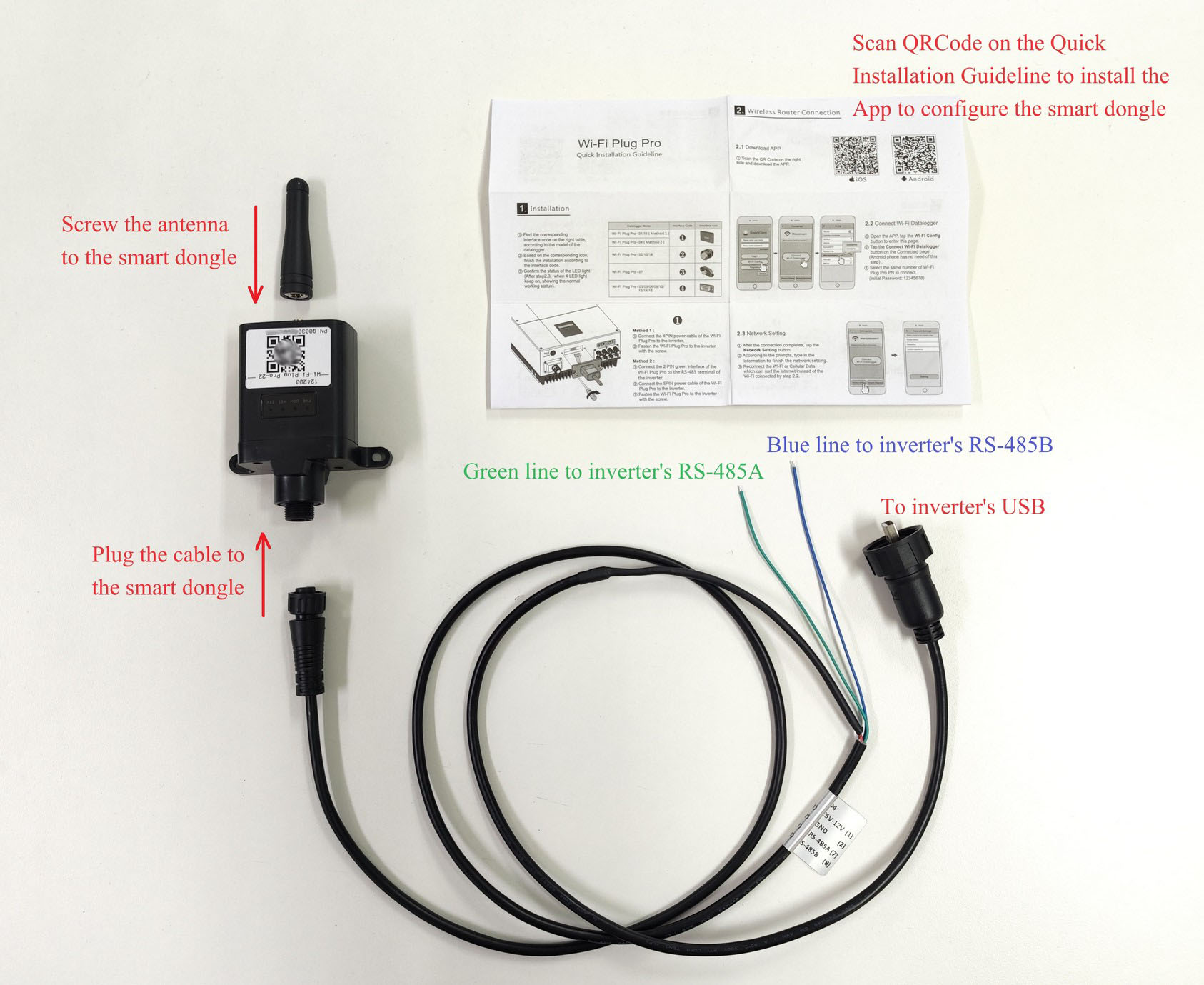
For a Smart Dongle without an adaption cable, directly connect the dongle's tail to the inverter's communications port.
For both types, the antenna should be screwed to the head of the dongle.
See also the video guide: Arkreen Standard Miner Introduction Guide
Q3: How can I configure a Smart Dongle?
To configure a Smart Dongle, download and install the SmartClient for Solar App.
You can find the App in Google Play Store (For Android) or App Store (for iPhone). You can also scan the QRCode on the Quick Installation Guideline coming with the Smart Dongle to find the App.
For Wi-Fi type Smart Dongle
1. Preparation
To avoid interference with the configuration procedures, it's strongly recommended temporarily disabling the Internet connection on your cellphone when configuring the Smart Dongle.
Steps:
(1) Go to the Settings of your cellphone.
(2) Go to the cellular network setting and disable the cellular (2G/3G/4G/5G) data connection. It's not necessary to disable the speech service.
(3) If the cellphone is connected to a nearby Wi-Fi hotspot, go to the Wi-Fi setting and
a. either forget the saved Wi-Fi AP currently connected, or
b. disconnect from current Wi-Fi AP and disable the "Automatically connect" option for this connection.
Note: Do NOT disable Wi-Fi itself. Instead, just disconnect and keeping disconnected from any existing Wi-Fi AP.
In case you should encounter any problem that SmartClient App doesn't respond during the configuration process, try rebooting your cellphone and make sure above preparation steps are done.
2. Connect to Smart Dongle
Before proceed, make sure the Smart Dongle is powered up, i.e., the PWR light is on. If you correctly connect the Smart Dongle to the inverter, it should be powered up.
Go to the Wi-Fi setting of your cellphone and connect to the Wi-Fi AP with the same name as the PN of the Smart Dongle. The PN is printed on the Smart Dongle. The default password is 12345678.
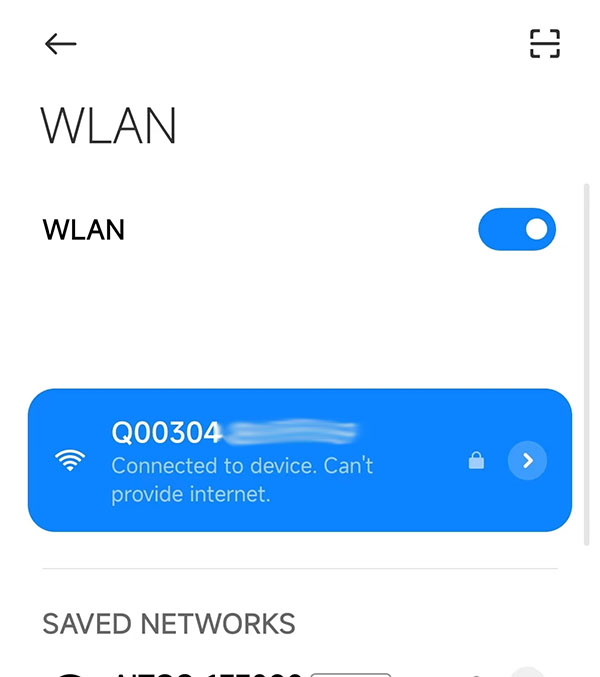
The cellphone may show a warning that Internet is not available through the Wi-Fi and suggest some other connections (cellular or other Wi-Fi AP). Please ignore the warning and keep the cellphone connecting to the Smart Dongle's Wi-Fi AP.
3. Configure Wi-Fi Network
(1) Open the SmartClient App and tap Wi-Fi configuration on the welcome page.
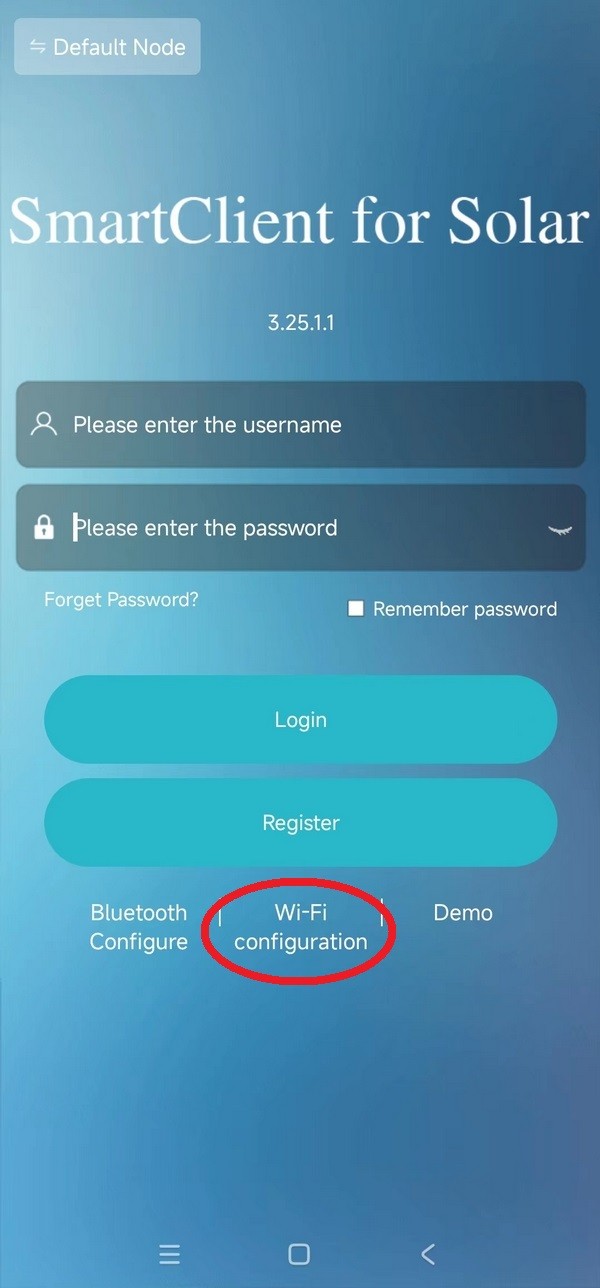
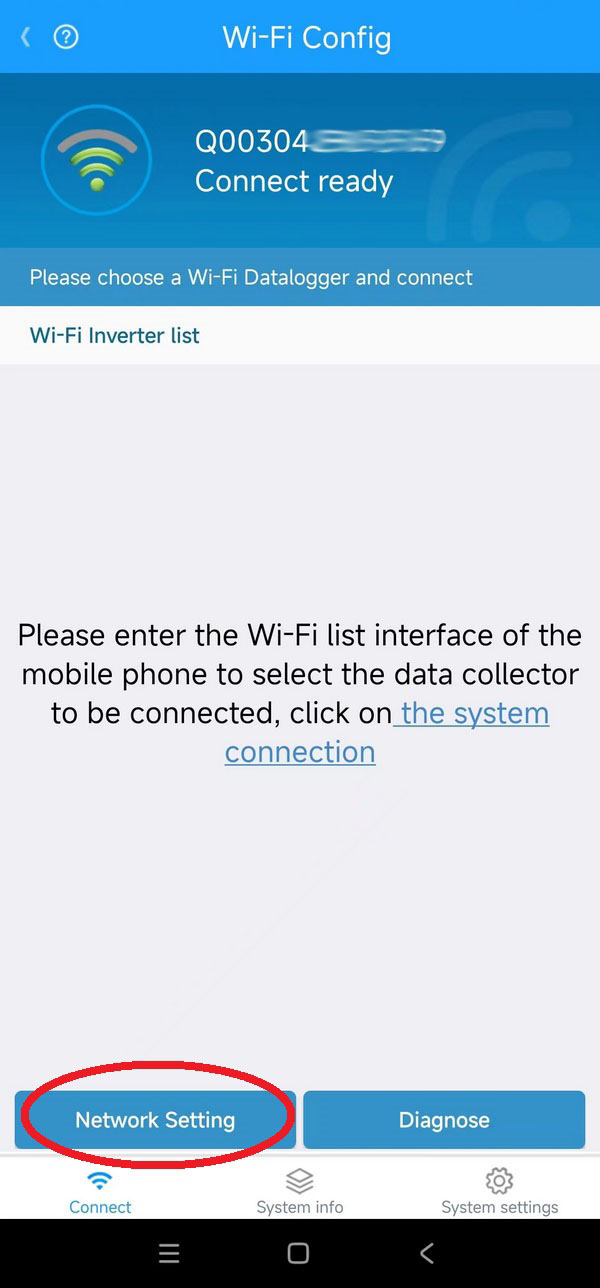
(2) The App will automatically connect to the Smart Dongle. Tap Network Setting button.
(3) Fill in the name and password of a nearby Wi-Fi AP and tap Setting at the top right corner.
This Wi-Fi AP must cover where the Smart Dongle is installed and could visit the Internet. The Wi-Fi AP's name and password will be transferred to the Smart Dongle so that the dongle can connect to the Internet through it.
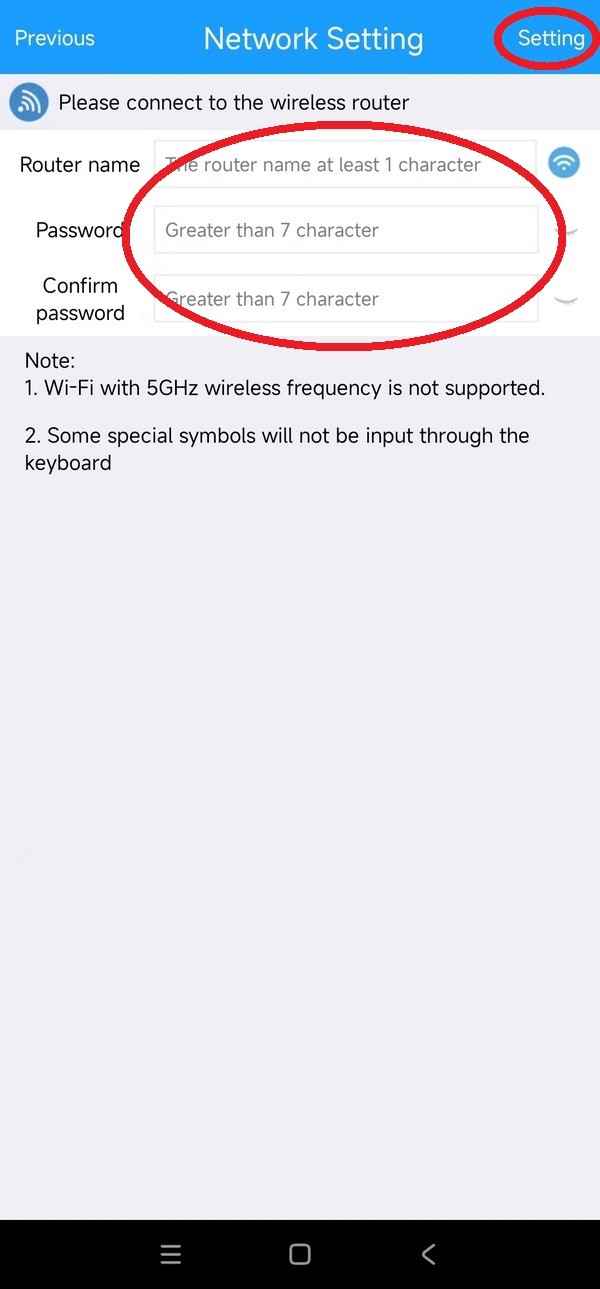
Note: Do NOT fill in the AP of the Smart Dongle itself. If you disabled an existing Wi-Fi connection during preparation, this Wi-Fi AP is likely the one you should fill in.
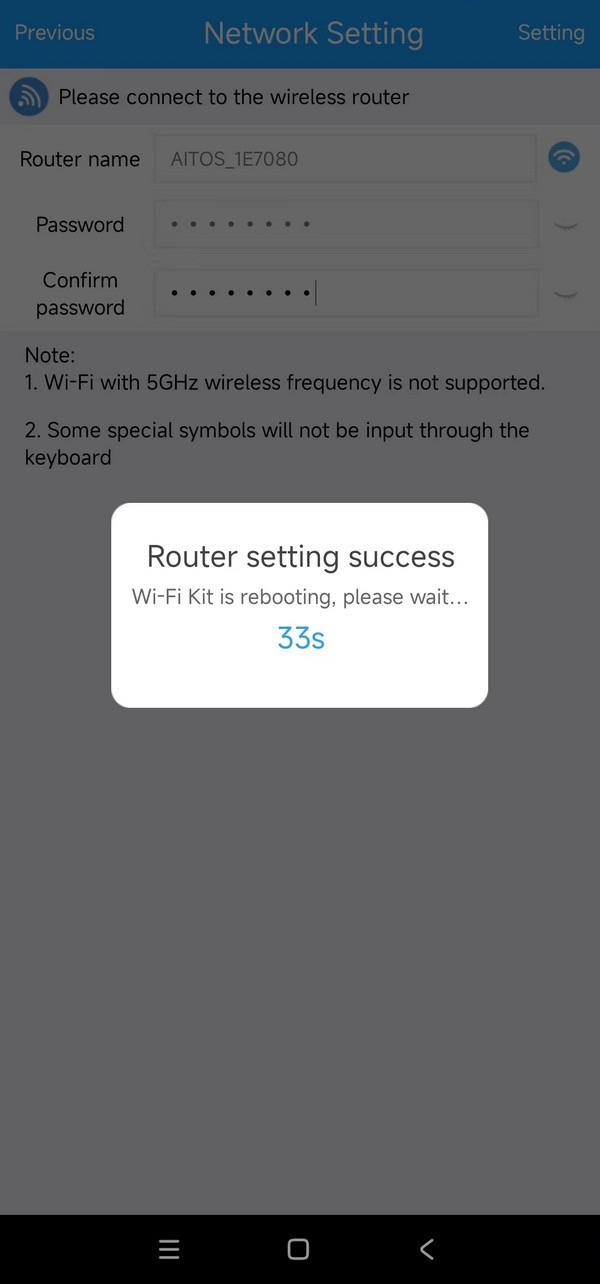
(4) The Smart Dongle will automatically reboot and start to work.
4. [VERY IMPORTANT] Retract the Changes made to the Cellphone Settings
Undo all steps you did during Preparation.
Do NOT forget to undo the preparation. Otherwise, your cellphone cannot connect to the Internet.
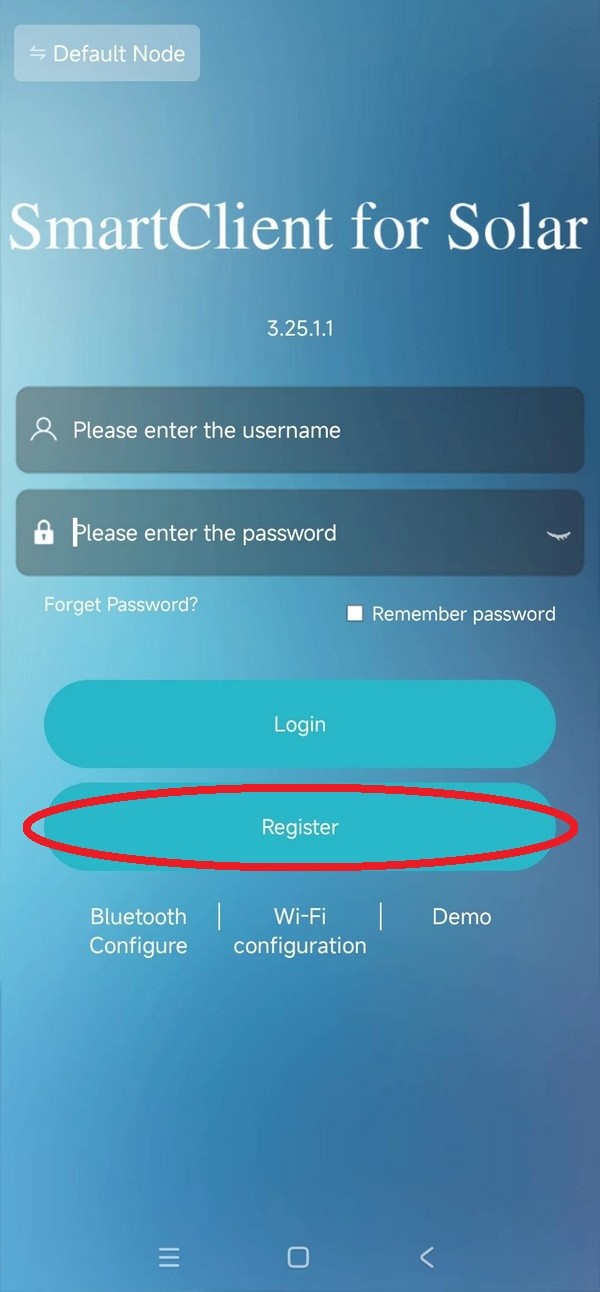
5. Register an Account (optional)
Optionally, you can register an account and add the Smart Dongle into your account to see electricity generation details.
For Cellular type Smart Dongle
For cellular type Smart Dongle, no network configuration is required. Simply register an account and add your Smart Dongle (optional).